
Custom UITextField based on Extendy framework functionality.


- iOS 15.0+
- Swift 5.4+
Add the package in Xcode via File → Add Package Dependencies, or declare it in Package.swift:
dependencies: [
    .package(url: "https://github.com/NovichenkoAnton/StringifyTextField.git", .upToNextMajor(from: "1.4.0"))
]
Add the StringifyTextField product to your target.
StringifyTextField is available through CocoaPods. To install it, add the following line to your Podfile:
pod 'StringifyTextField', '~> 1.4'import StringifyTextField
// Connect IBOutlet
@IBOutlet var stringifyTextField: StringifyTextField!
// Create programmatically
let manualTextField = StringifyTextField(type: .amount)
manualTextField.frame = CGRect(x: 20, y: 100, width: 200, height: 40)StringifyTextField is a text field that can format an entered string with 6 available formats.
Available formats:
public enum TextType: UInt {
  case amount = 0
  case creditCard = 1
  case IBAN = 2
  case expDate = 3
  case cvv = 4
  case none = 5
}You can specify a currency mark for .amount text type.

Set up maximum integer digits (if your amount contains integer and fraction parts).
stringifyTextField.maxIntegerDigits = 6If your amount doesn't contain a fraction part, you can disable decimal through Interface Builder or programmatically.
stringifyTextField.decimal = false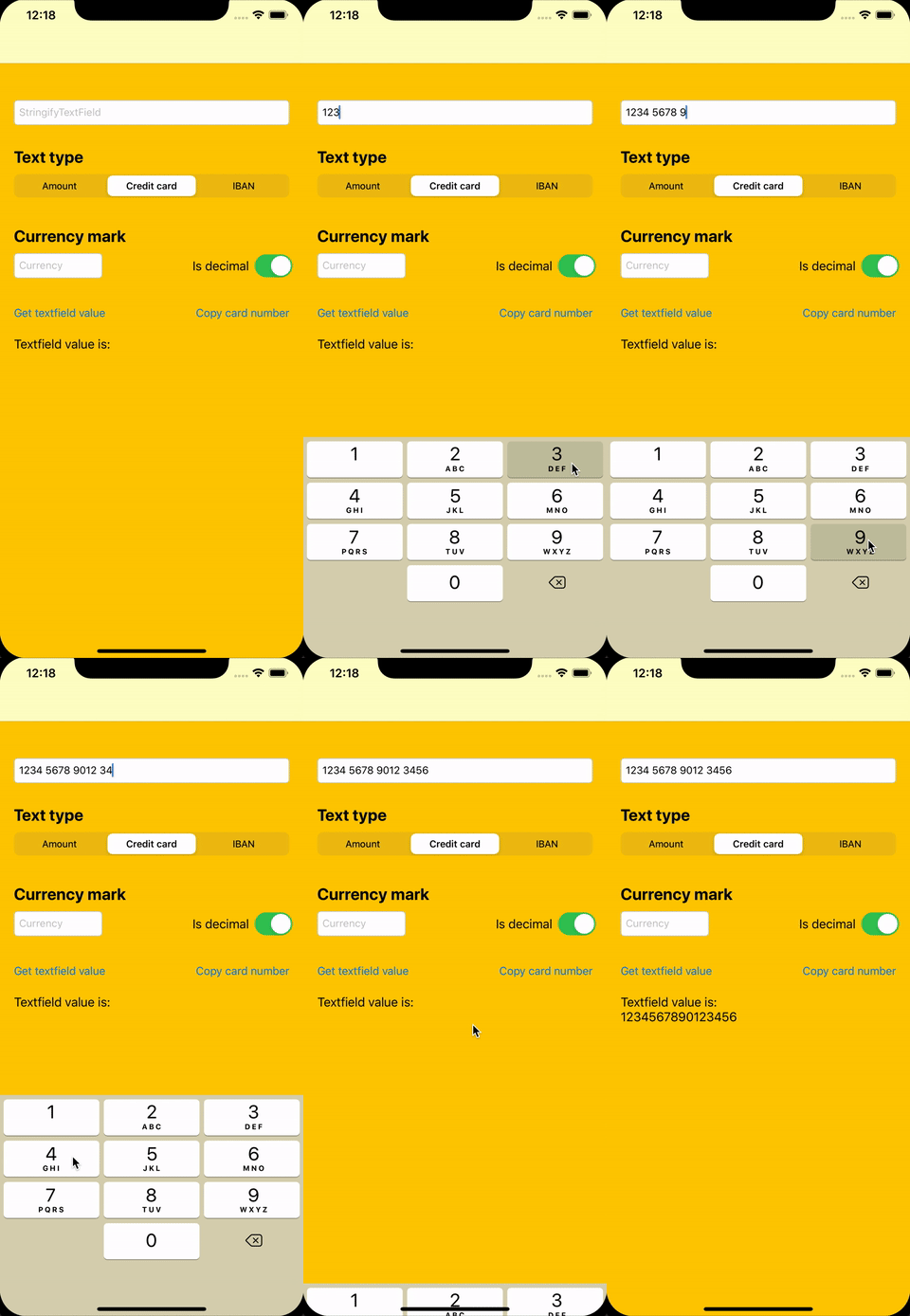
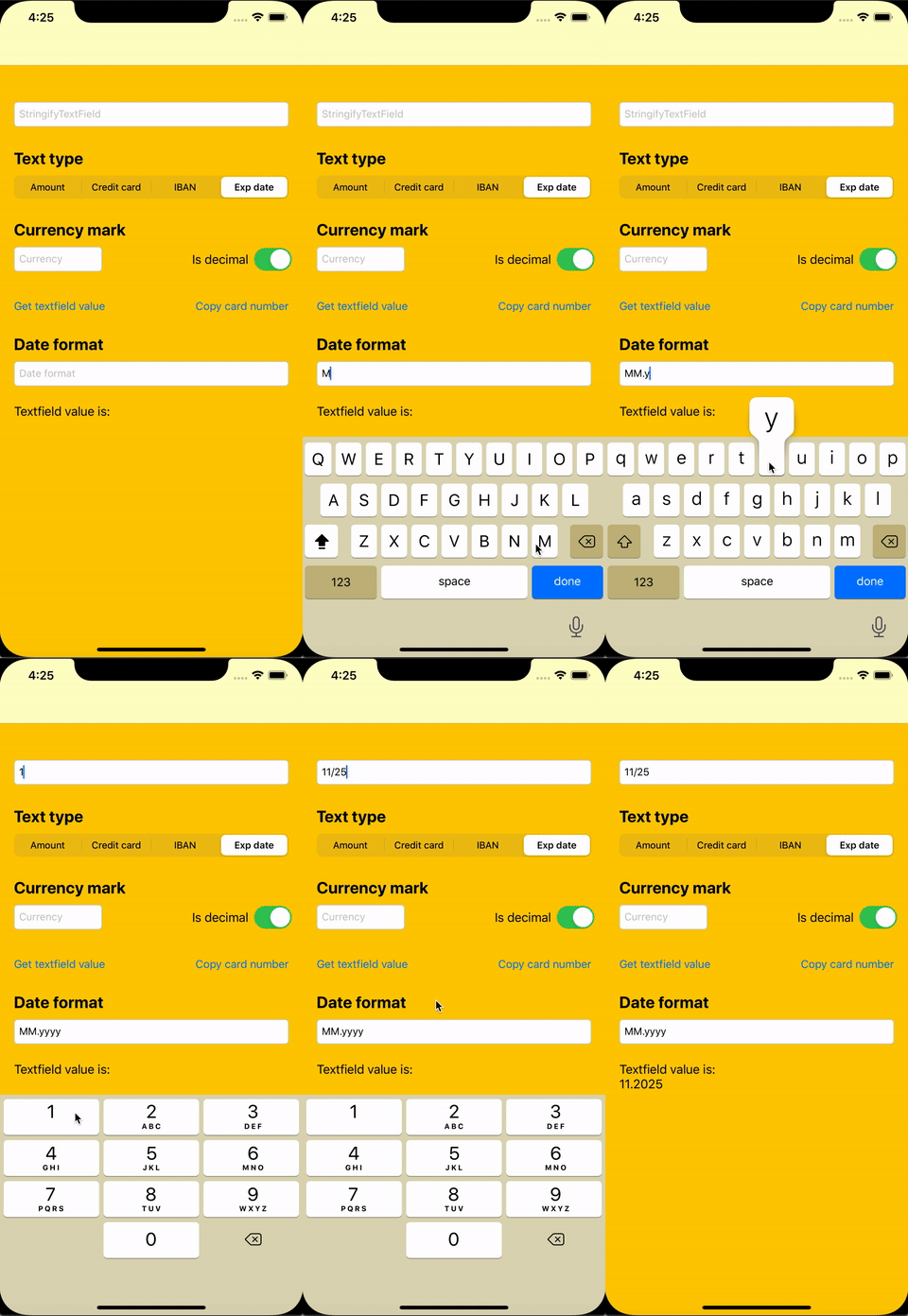
You can specify a date format to get the required "clean" value.
stringifyTextField.dateFormat = "MM.yyyy"You can get the plain value from StringifyTextField. For example, for .expDate format it will be the value with the specified date format applied.
let expDate = stringifyTextField.plainValueEvery system edit action is available by default. .amount and .expDate hide Cut and Paste until editingActions is set. Setting the property, including back to .all, replaces that restriction.
Disable actions:
stringifyTextField.editingActions = .excluding([.cut, .paste])Leave only specific actions:
stringifyTextField.editingActions = .only([.copy, .selectAll])Hide the menu:
stringifyTextField.editingActions = .noneStringifyTextField supports three different styles:
public enum Style {
    case line
    case border(cornerRadius: CGFloat = 0)
    case native(borderStyle: UITextField.BorderStyle)
}
You can display a bottom line in StringifyTextField with .line style:
stringifyTextField.style = .line
stringifyTextField.lineColorDefault = UIColor.black
stringifyTextField.lineColorActive = UIColor.blue
or use bordered style:
stringifyTextField.style = .border(cornerRadius: 8)
stringifyTextField.borderColorDefault = UIColor.lightGray
stringifyTextField.borderColorActive = UIColor.blue
and enable a floating placeholder:
stringifyTextField.floatingPlaceholder = true
stringifyTextField.floatingPlaceholderColor = UIColor.black
stringifyTextField.floatingPlaceholderActiveColor = UIColor.blue
stringifyTextField.floatingPlaceholderFont = UIFont.systemFont(ofSize: 14)
A plain placeholder on the floated label is drawn with floatingPlaceholderFont. To keep a custom font on that label, including different fonts in one string, set floatingAttributedPlaceholder. Each font run keeps its typeface. The largest font is scaled to floatingPlaceholderFont.pointSize, and the others scale with it. Label color still comes from floatingPlaceholderColor and floatingPlaceholderActiveColor. attributedPlaceholder is a separate string: it is the placeholder drawn in the field and does not change the floated label.
let regular = UIFont(name: "CustomFont-Regular", size: 18)!
let bold = UIFont(name: "CustomFont-Bold", size: 18)!
let placeholder = NSMutableAttributedString(
    string: "Amount ",
    attributes: [.font: regular]
)
placeholder.append(NSAttributedString(
    string: "USD",
    attributes: [.font: bold]
))

stringifyTextField.attributedPlaceholder = placeholder
stringifyTextField.floatingAttributedPlaceholder = placeholder
stringifyTextField.floatingPlaceholder = true
floatingAttributedPlaceholder styles only the floated label. attributedPlaceholder styles only the placeholder in the field. A later system rewrite that drops fonts does not clear the fonts of the string it belongs to.
InnerFloatedStringifyTextField is a StringifyTextField subclass with an inner floated label. The standard clear button remains vertically centered, and the value is clipped to that button with a trailing ellipsis.
let innerFloatedTextField = InnerFloatedStringifyTextField(type: .amount)
innerFloatedTextField.placeholder = "Amount, BYN"
innerFloatedTextField.clearButtonMode = .whileEditing
innerFloatedTextField.floatedLabelFontSize = 14
innerFloatedTextField.floatingPlaceholderColor = UIColor.gray
innerFloatedTextField.floatingPlaceholderActiveColor = UIColor.gray
floatingAttributedPlaceholder styles only the floated label. Its largest font is scaled to floatedLabelFontSize. attributedPlaceholder styles the placeholder in the field. With .onInput, that string keeps its own font sizes until a value is entered and the label floats.
innerFloatedTextField.attributedPlaceholder = placeholder
innerFloatedTextField.floatingAttributedPlaceholder = placeholder
innerFloatedTextField.floatedPlaceholderDisplay = .onInput
The label can stay at the top or float up only after a value is entered:
innerFloatedTextField.floatedPlaceholderDisplay = .alwaysOnTop
innerFloatedTextField.floatedPlaceholderDisplay = .onInput
contentInsets insets the label, the value, and the clear button inside the field bounds. Top inset places the floated label, bottom inset places the value.
innerFloatedTextField.contentInsets = UIEdgeInsets(top: 10, left: 16, bottom: 10, right: 16)
innerFloatedTextField.labelToTextSpacing = 2
InnerFloatedStringifyTextField keeps all StringifyTextField formats, styles, and error handling.
Display an error state with a temporary highlight:
// Show error for default duration (1 second)
stringifyTextField.showError()

// Show error for custom duration
stringifyTextField.showError(for: 5.0)

// Hide error manually
stringifyTextField.hideError()You can see other features in the example project.
StringifyTextField is available under the MIT license. See the LICENSE file for more info.